Dashboard Implementation Guide in STANIFICENT WORKFORCE
Author: STANIFICENT STANIBIZ DIGITAL SYSTEMS AND MEDIA COMPANY LIMITED
Published: 23 May 2026 4:40 PM
👁 33 Views
Introduction
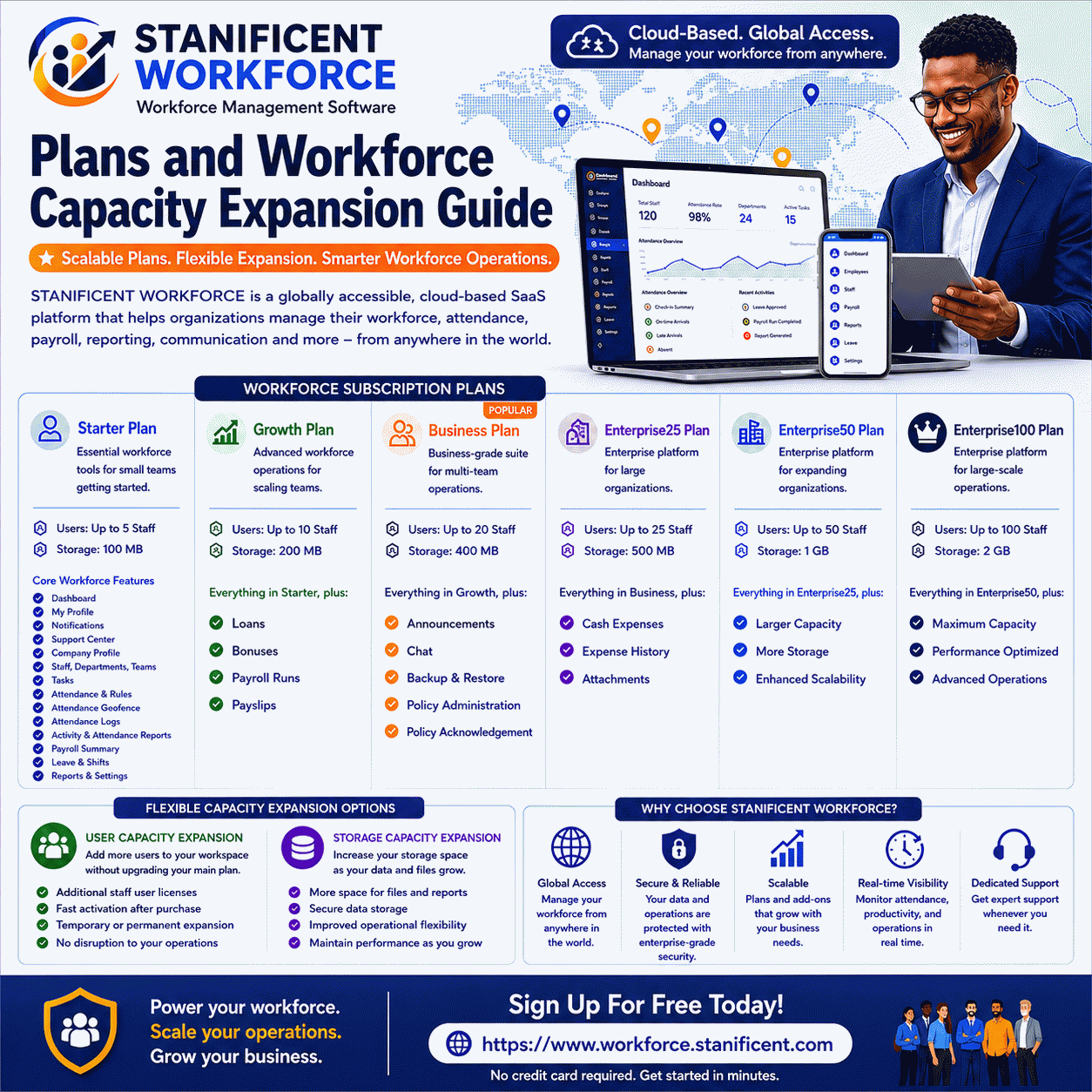
STANIFICENT WORKFORCE is a cloud-based Software as a Service (SaaS) workforce management system designed for organizations that need centralized workforce operations, attendance visibility, scheduling management, workforce reporting, operational oversight, and role-based administrative control from a unified platform.
The Dashboard serves as the primary operational home screen for workspace administrators and operator-level users. It centralizes workforce visibility, operational shortcuts, usage monitoring, geofence visibility, scheduling workflows, roster visibility, and notification-related activities into a workspace-scoped operational environment.
STANIFICENT WORKFORCE is not limited to a single city or country. The platform is designed as a globally accessible workforce management solution where companies, teams, administrators, and staff can operate from different parts of the world while maintaining isolated workspace environments, role-aware visibility, and centralized operational control.
Organizations in Benin City, Edo State, Lagos, Abuja, Port Harcourt, Delta State, and other parts of Nigeria can use the platform alongside businesses and workforce teams operating across the United States, Canada, the United Kingdom, Germany, France, the Netherlands, the United Arab Emirates, Saudi Arabia, South Africa, Kenya, China, India, Japan, Singapore, Australia, and other international regions worldwide.
The platform’s workspace-scoped SaaS architecture allows each tenant organization to operate independently through its own isolated dashboard environment while supporting scalable cloud-based workforce operations for both local and global teams.
Dashboard Route Structure
The Dashboard operates within a workspace-scoped route structure.
each company workspace operates inside its own isolated dashboard environment
The system uses this scoped routing structure to maintain:
Workspace isolation
Tenant-level data separation
Workspace-specific visibility
Controlled operational access
The Dashboard is therefore not a globally shared operational page across all organizations. Each workspace accesses its own isolated dashboard environment through its unique workspace context.
Dashboard Access Control
Dashboard access is protected using authentication and minimum access-level checks.
The system requires:
Valid authenticated session
Minimum operator-level access
Users below operator-level access may not receive dashboard access or dashboard sidebar visibility.
The system also uses role-aware home path resolution. Depending on role access:
Some users open Dashboard after login
Some users may instead open Profile pages
This helps reduce operational clutter for lower-level users while maintaining administrative visibility for operators and administrators.
Dashboard Sidebar Visibility
The Dashboard appears inside the workspace sidebar navigation for eligible users.
Sidebar visibility is controlled by:
User role
Workspace feature access
Plan restrictions
Navigation visibility logic
The dashboard itself should not be confused with separate sidebar modules.
For example:
Dashboard is a dashboard-rendered page
Announcements is a separate sidebar module
Attendance is a separate operational module
Reports is a separate reporting module
The dashboard may provide shortcuts into these modules, but they remain independent pages and workflows.
Dashboard Metric Cards
The Dashboard renders operational metric cards that provide a quick overview of workforce activity.
These cards include:
Staff Members
Departments
Attendance Logs
The values displayed are generated from workspace-scoped operational counts.
Why Metric Cards Matter
The metric cards help administrators and operators quickly review:
Workforce size visibility
Department structure visibility
Attendance activity visibility
without opening multiple operational pages.
This allows faster operational monitoring immediately after login.
Dashboard Quick Links
The Dashboard includes a Quick Links panel used for fast navigation into operational modules.
These links are dynamically generated based on:
User role
Feature availability
Workspace subscription access
Feature-gating rules
Role-Based Quick Link Behavior
Administrators may receive expanded Quick Link visibility.
Operator users may receive smaller operational link groups.
Quick Links may also disappear when:
A feature is disabled
A plan does not include the feature
Workspace access restrictions apply
This prevents users from opening unauthorized or unavailable modules.
Operational Modules Linked from Dashboard
Quick Links may connect to modules such as:
Attendance
Tasks
Off Rosters
Leave
Reports
Cash Expenses
Payroll-related pages
Monthly Summary Report
The Dashboard acts as an operational starting point rather than replacing these modules.
Dashboard Usage Card
The Dashboard renders a Usage Card panel that displays workspace usage and subscription visibility.
This section may include:
Plan name
Storage usage
Remaining storage
User limits
Add-on visibility
Subscription windows
Expiry visibility
Workspace status
The data is retrieved using workspace usage snapshot logic and active capacity visibility workflows.
Why the Usage Card Is Important
The Usage Card helps workspace administrators monitor:
Subscription status
User growth
Storage consumption
Add-on availability
Remaining operational capacity
This helps reduce unexpected operational interruptions caused by exhausted workspace limits.
Dashboard Geofence Radius Preview
When geofence functionality is enabled for the workspace, the Dashboard renders the Geofence Radius Preview panel.
This section includes:
Active geofence locations
Radius visibility
Live location comparison
Inside/outside validation visibility
Map interaction controls
Dashboard actions may include:
Test My Current Location
and
Enable Map Interaction
How the Geofence Workflow Operates
The dashboard compares the user’s live coordinates against configured geofence circles.
The system then renders:
Distance visibility
Acceptance visibility
Location status visibility
This allows users and administrators to preview whether the current location falls inside approved work areas.
The dashboard preview workflow improves operational visibility without forcing users into deeper attendance configuration pages.
Dashboard Published Weekly Rosters
The Dashboard also renders Published Weekly Rosters.
This section contains:
Active Week visibility
Upcoming Week visibility
Staff off-day summaries
Published roster visibility
The dashboard retrieves this information using roster visibility services and allowed roster window logic.
Why Weekly Roster Visibility Matters
The roster panels help managers and operators:
Review workforce scheduling
Check off-day assignments
Confirm active scheduling windows
Plan upcoming operational coverage
before assigning workforce activities.
This helps reduce scheduling conflicts and improves workforce planning visibility.
Dashboard Notification Visibility
The Dashboard also renders notification-related visibility sections.
This may include:
Notification cards
Read/unread visibility
Banner visibility
Mark Read actions
Unread notifications can be updated using dashboard actions such as:
Mark Read
This workflow helps improve operational awareness and reduces missed workspace updates.
Dashboard Feature Gating
The Dashboard uses feature-aware rendering logic.
Some dashboard sections or Quick Links may disappear depending on:
Workspace plan restrictions
Feature mappings
User role permissions
Workspace feature availability
This helps maintain:
Subscription-aware rendering
Workspace-level feature isolation
Controlled operational visibility
The dashboard therefore changes dynamically depending on workspace configuration and access rules.
Dashboard Operational Workflow Summary
The Dashboard combines several operational visibility systems into one workspace-scoped page, including:
Workforce metric visibility
Operational shortcut visibility
Subscription and usage monitoring
Geofence preview visibility
Weekly roster visibility
Notification visibility
Role-aware navigation
Feature-aware rendering
while still separating the dashboard itself from independent modules such as:
Attendance
Reports
Announcements
Leave
Payroll pages
Tasks
Cash Expenses
The Dashboard serves as a centralized operational overview rather than a replacement for those modules.
Key Takeaways
The Dashboard operates using workspace-scoped routing
Dashboard access requires authentication and operator-level access
Sidebar visibility depends on role and feature access
Metric cards provide quick operational visibility
Quick Links are dynamically filtered using role and plan logic
Usage Cards monitor workspace subscription and capacity visibility
Geofence Preview validates live location visibility against approved work areas
Weekly Rosters provide active and upcoming scheduling visibility
Notification workflows support read/unread operational visibility
The Dashboard is separate from standalone sidebar modules and operational pages
Frequently Asked Questions
Why do some users not see the Dashboard after login?
Dashboard visibility depends on role-aware home path logic and minimum access-level checks. Some lower-level users may instead open Profile pages.
Why are some Quick Links missing from the Dashboard?
Quick Links are filtered using feature availability, workspace subscription access, and role-based visibility logic.
What information does the Usage Card display?
The Usage Card displays subscription visibility, storage usage, remaining storage, user limits, add-on visibility, expiry information, and workspace status.
Does the Dashboard contain separate operational modules?
No. The Dashboard may provide shortcuts into operational modules, but modules such as Attendance, Reports, Leave, Announcements, and Payroll remain separate pages and workflows.
Author: STANIFICENT STANIBIZ DIGITAL SYSTEMS AND MEDIA COMPANY LIMITED
Published: 24 May 2026 7:01 AM
Introduction Every organization grows differently. Some businesses begin with a small operational team handling daily attendance and employee coordination, while others manage multiple departments, branch offices, remote...
Author: STANIFICENT STANIBIZ DIGITAL SYSTEMS AND MEDIA COMPANY LIMITED
Published: 24 May 2026 6:03 AM
Introduction Modern organizations require organized workforce onboarding systems, secure workspace activation workflows, and centralized workforce communication environments to manage employees efficiently across multipl...